Deployment recipe · Media
Jellyfin on a Pi 4: what actually plays without transcoding
The honest summary of Jellyfin on a Raspberry Pi is that it is a fine file server and a mediocre transcoder. Everything works beautifully as long as the client can decode the file itself; the moment the Pi has to convert video in software, a 4B manages about one 1080p stream and starts dropping frames on anything more. This entry is about arranging the library so that transcoding almost never happens.
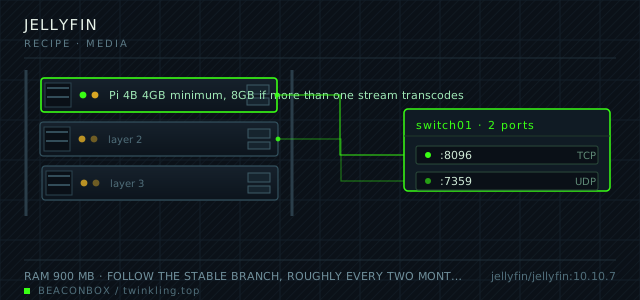
| image | jellyfin/jellyfin:10.10.7 |
|---|---|
| host ports | :8096/tcp, :7359/udp |
| volume path | /srv/homelab/jellyfin/config |
| RAM | 900 MB |
| CPU share | 2.0 vCPU (cpus: "2.0") — transcoding is the only heavy job on this rack |
| update cadence | follow the stable branch, roughly every two months; read the release notes for library schema migrations before pulling |
| arm64 | arm64 native. Hardware H.264 decode works through the V4L2 device; HEVC and AV1 will fall back to software even on a Pi 5 |
| host | container | proto | exposed | used for |
|---|---|---|---|---|
| :8096 | 8096 | tcp | LAN only | web UI, API and the apps on the TV and phones |
| :7359 | 7359 | udp | LAN only | client auto-discovery on the local network |
Deployment steps
Mount the media share on the host first
Mount and verify on the host before touching Docker. A container that starts with an empty /media shows an empty library and sends you looking in the wrong place.
run sudo mkdir -p /mnt/nas/media sudo mount -a ls /mnt/nas/media | head findmnt /mnt/nas/media -o TARGET,SOURCE,FSTYPE,OPTIONSCreate the config and cache directories as your user
Jellyfin runs as uid 1000 in the official image. Directories created by Docker as root produce a server that starts and then fails to write its own database.
run sudo mkdir -p /srv/homelab/jellyfin/{config,cache} sudo chown -R 1000:1000 /srv/homelab/jellyfinStart the container and watch the first log lines
The first thing worth checking is whether the V4L2 devices were accepted. If Docker rejects a device node the container exits immediately with a clear error.
run cd /srv/homelab/jellyfin && docker compose up -d docker logs --tail 30 jellyfin | grep -i -E 'v4l2|device|startup complete'Add libraries with the container paths, not the host paths
The library path inside Jellyfin is /media/movies, not /mnt/nas/media/movies. Getting this wrong creates a library that scans fine and then cannot find a single file after a restart.
run docker exec jellyfin ls /media # whatever this prints is the path to type into the library dialogProve direct play works before inviting anyone
Play a known H.264 file on each client while watching the dashboard. A stream that says 'Direct Play' costs the Pi nothing; 'Transcode' with software in the reason box is what you are hunting for.
run docker stats --no-stream jellyfin # under 15% CPU during a stream means it is direct playing
Direct play is the whole design goal
The Pi's VideoCore GPU decodes H.264 in hardware and nothing else useful. So the library is normalised to H.264 in an MP4 or MKV container with AAC audio, and every client is told to direct play. Done that way, a Pi 4B serves three simultaneous streams at under 15 percent CPU.
HEVC is the interesting case. A Pi 5 can decode it, a Pi 4 cannot, and a phone from the last three years can. Whether to keep HEVC files depends entirely on which of your clients are older than the codec.
| codec on disk | Pi 4B | Pi 5 | typical phone | verdict here |
|---|---|---|---|---|
| H.264 1080p | hardware decode | hardware decode | direct play | keep, this is the target |
| HEVC 1080p | software, drops frames | hardware decode | direct play | keep only if the TV handles it |
| HEVC 4K | no | marginal | usually fine | keep out of the library |
| AV1 | no | no | newest phones only | do not collect it |
Where the media actually lives
Media sits on the NAS over SMB, mounted on the Pi at /mnt/nas/media, and mounted into the container read-only. The Pi holds the metadata database and the images, the NAS holds the files. That split matters because it means losing the Pi costs you a rescan, not a library.
Read-only is not just hygiene: it makes Jellyfin's habit of writing .nfo files and downloading artwork next to the media a non-event, and it means a misconfigured library path cannot delete anything.
# /etc/fstab on the Pi
//192.168.10.5/media /mnt/nas/media cifs credentials=/etc/cifs-media.cred,uid=1000,gid=1000,ro,vers=3.0,nofail,x-systemd.automount 0 0
Giving the container the video device
Hardware decode on Raspberry Pi OS is reached through the V4L2 mem2mem devices /dev/video10 through /dev/video12. They exist on the host but not inside the container, which is why a container that plays fine in VLC still pins all four cores in Jellyfin.
Pass the three devices through and add the container to the video group. The group id is 993 on Raspberry Pi OS and 44 on some other arm64 distributions, so check it on the host rather than copying a number from a guide.
getent group video
# raspberry pi os: video:x:993:
ls -l /dev/video1*
# pass through the ones that exist; missing nodes make docker refuse to start the container
Hiding the transcoder from your users
Even with hardware decode accounted for, one client will ask for a bitrate the server cannot software-convert. Set a per-user streaming bitrate limit that matches the network — 12 Mbps on gigabit ethernet, 4 Mbps for the tablets on wifi — and enforce it, so the request becomes a direct-play-or-nothing decision instead of a stuttering transcode.
Turning on hardware transcoding for H.264 is worth it: two consecutive 1080p conversions via V4L2 use less CPU than a single software one.
docker exec jellyfin ffmpeg -hide_banner -hwaccels | head -5
# look for v4l2m2m; if it is missing the device passthrough did not take effect
compose file
Drop the whole file at /srv/homelab/jellyfin/compose.yaml. Tags are pinned, never latest: rolling back on a Pi is far more work than upgrading.
services:
  jellyfin:
    image: jellyfin/jellyfin:10.10.7
    container_name: jellyfin
    restart: unless-stopped
    ports:
      - "8096:8096/tcp"
      - "7359:7359/udp"
    environment:
      TZ: Asia/Shanghai
      JELLYFIN_PublishedServerUrl: http://192.168.10.20
    volumes:
      - /srv/homelab/jellyfin/config:/config
      - /srv/homelab/jellyfin/cache:/cache
      - /mnt/nas/media:/media:ro
    devices:
      - /dev/video10:/dev/video10
      - /dev/video11:/dev/video11
      - /dev/video12:/dev/video12
    group_add:
      - "993"          # video group on Raspberry Pi OS
    networks: [rack]

networks:
  rack:
    external: true
Hardening checklist
- reachable only through the reverse proxy on the LAN, with remote access through WireGuard rather than an open port
- remote access disabled in the Jellyfin dashboard, so the server never advertises itself outside the house
- one account per person, no shared logins, and admin rights on exactly one of them
- the V4L2 device is passed through read-only and the container drops every capability it does not use
- media directories mounted read-only: the server has no business writing to the library
Backup plan
config directory nightly to the NAS, and the media library itself lives on the NAS and is backed up there — the Pi holds no irreplaceable data. The one thing worth exporting by hand is the user list and watch state, because rebuilding 'continue watching' from scratch takes weeks of viewing.
Verify it went in clean
- A 1080p H.264 file plays on the TV with the Jellyfin dashboard showing Direct Play
- docker stats stays below 20 percent CPU with two simultaneous streams
- The auto-discovery entry appears in the client apps without typing an IP address
- Restarting the container does not rescan the whole library, proving the config volume is writable and persistent
What bit us
- Mounting media read-only breaks the built-in subtitle downloader, which writes .srt files next to the video. Either pre-download subtitles or accept the failure and use the option that stores them in the config directory.
- Without the V4L2 devices passed through, Jellyfin does not warn you — it simply software-decodes, uses four cores, and makes the Pi feel broken in a way you will blame on the network.
- A CIFS mount with no x-systemd.automount means the container starts before the share is mounted, sees an empty directory, and reports a library of zero items until the next restart.
- Jellyfin writes its metadata database on a schedule. On an SD card this is a slow-burn failure; keep /config on the SSD.
Hardware questions
- Is a Pi 4 enough for Jellyfin, or do I need a Pi 5?
- A 4B with 4 GB handles two or three direct-play 1080p streams comfortably. Buy the Pi 5 only if your library is HEVC and your clients cannot decode it — the Pi 5's HEVC hardware decode is the one upgrade that changes what the machine can actually do.
- Can I run Jellyfin and Immich on the same 8 GB board?
- Yes, and this rack does. Budget 900 MB for Jellyfin with two streams, 1.2 GB for Immich with a library under fifty thousand photos, and leave the rest for the reverse proxy and the monitoring stack. What you must not do is run both on a 4 GB board and expect transcoding to work.
- Why not just use the NAS's built-in media app?
- If the NAS has one and it supports your clients, use it — you will save 900 MB and an afternoon. Jellyfin earns its place here because the clients are better on a TV, and because watch state and user accounts belong to you rather than to a vendor's account system.